In short: Spatial Mapper moves projection mapping off the laptop screen and into the room, using Snap Spectacles to trace, design, and preview projection content while standing in front of the actual wall.
The problem with mapping a real wall from a flat screen
Projection mapping has always meant the same workflow. You point a projector at a wall, a stage, a product, whatever the surface is, then sit down at a laptop with a camera feed and calibrate the throw by dragging control points around on a 2D preview. You are translating a three-dimensional room into a flat rectangle, doing the design work there, then hoping it lines up when you look back up at the real surface.
That translation step is where most of the friction lives. Corners drift. Perspective is hard to judge from a webcam angle. You end up walking back and forth between the laptop and the wall, nudging points, checking, nudging again.
We have AR glasses that understand 3D space now. Snap Spectacles knows where the walls are, tracks your hands precisely enough to register a pinch, and holds a spatial anchor in place across a session. So the question became obvious: why is projection mapping still a laptop task?
What Spatial Mapper actually does
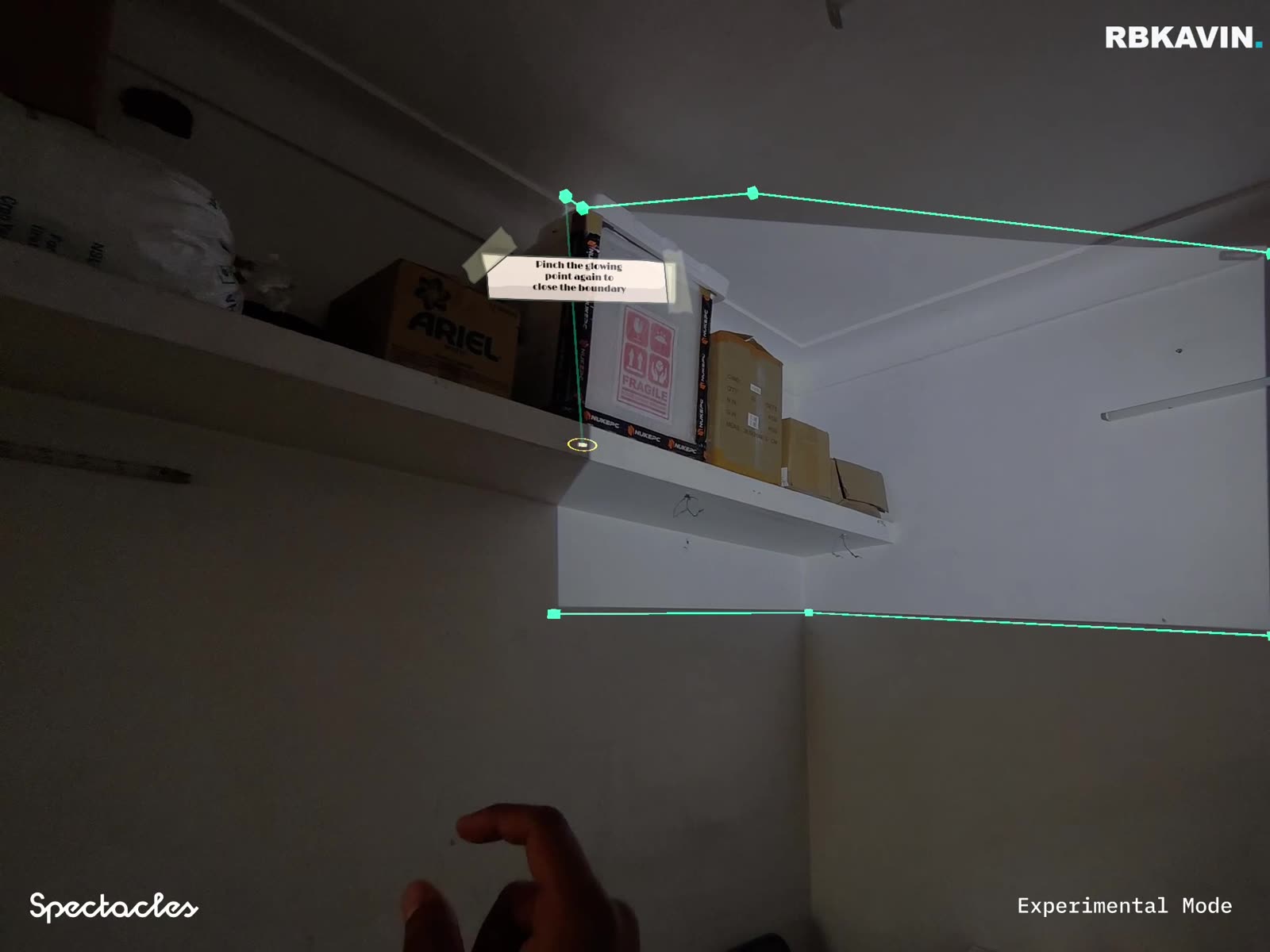
Spatial Mapper puts the whole workflow on your face instead of on a screen. You wear the Spectacles while the real projector is running, look at where the light actually lands on the wall, and trace the boundary of that light with a pinch gesture, one point per corner, standing in the actual room.
Once the boundary is closed, you place virtual shapes inside it, planes, boxes, spheres, cylinders, or a custom polygon you draw by hand that can bend around a corner, and give each shape a material. Materials are either a built-in animated shader, a preset test pattern, or your own uploaded image, video, GIF, or 3D model. The projector then throws exactly that design onto the wall.
A handful of terms carry the whole system:
- Boundary, the traced polygon marking exactly where the projector's light falls
- Shape, a virtual projection surface placed inside the boundary, primitive or custom, each with its own material
- Mask, just a shape set to solid black, which blocks light and cuts a dark hole in the projection, not a separate tool
- Web Mode, Spectacles and browser companion connected together, full feature set, drives a real projector
- Solo Mode, Spectacles only, every design tool still works, no projector output
Materials, masking, and the layer panel
Every shape gets a material from a built-in library: grid, gradients, pulse, scanlines, noise, and solid, and every one of those is animated or static, identical whether you are looking at it on the glasses or in the browser companion. A floating layer panel, styled like a game engine's hierarchy and inspector, lists every shape in the scene so you can rename, reorder, hide, or select one without losing track of what you have placed.
Masking uses the same shape system rather than a separate tool. Set any shape to solid black and it becomes a mask, cutting a dark hole in the projected light instead of adding to it. That single-tool approach kept the mental model simple during the build: everything on the wall is a shape with a material, and one of those materials happens to be "off."
Web Mode and Solo Mode ship together, not staged
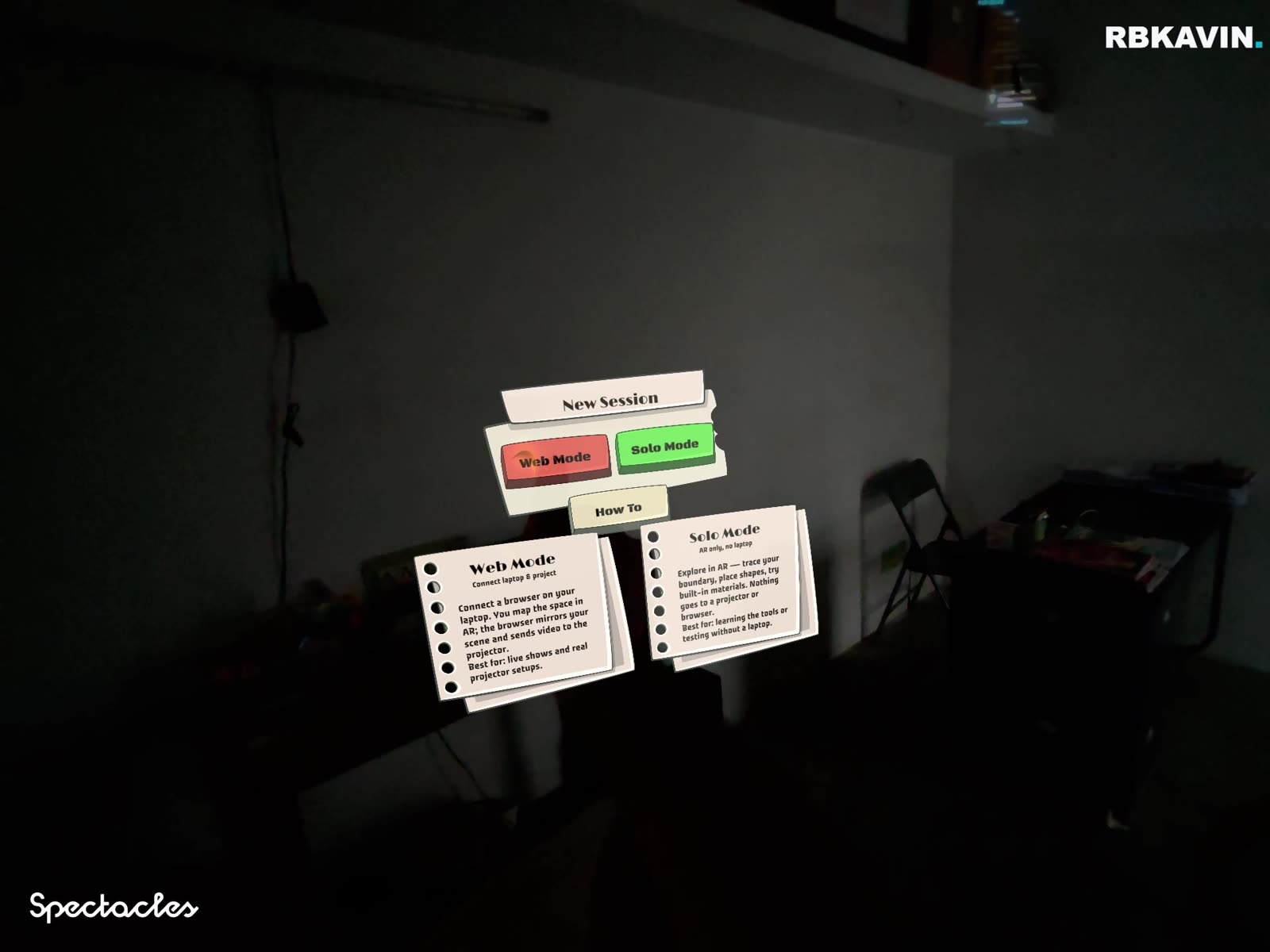
Web Mode pairs the Spectacles with a browser companion app that mirrors the AR scene live, lets you upload your own images, video, GIFs, or 3D models as materials, and actually drives the projector's output. Solo Mode runs the entire design toolkit on the glasses alone, tracing, shape placement, materials, masking, with no projector output at all.
We decided early that both modes had to ship in V1 together rather than one first and the other later. Solo Mode is what you reach for to learn the tool or test a design with no projector on hand. Web Mode is what you reach for on the day of an actual install. Shipping only one would have meant the tool was either a toy or a production instrument, never both.
Why Snap Cloud instead of a private WiFi relay
The Specs-to-browser connection started as a private WebSocket relay, which meant both devices had to sit on the same WiFi network. That is a reasonable assumption in a studio and a bad one on location, venue WiFi is locked down more often than not, and asking a client's IT team for network access before a show is friction nobody needs.
We moved the pairing layer onto Snap Cloud, which runs on Supabase, so the Spectacles and the companion app can connect without sharing a network at all. It is a plumbing decision, not a feature, but it is the one that determines whether the tool works on someone else's site or only in our own studio.
The Specs carry the heavy lifting. The browser companion is secondary, not the primary product, it exists to upload content and drive the projector, not to replace the design work happening in the headset.
What V1 covers, and what we deliberately left out
The contest build is scoped tightly on purpose. Redesigning the mapper mid-build was never allowed to eat into the posting cadence we had committed to, so the feature list for V1 is fixed:
Session save and load exists because Spectacles overheating and shutting down mid-session is a real problem when you are recording or mid-install, and losing a calibrated setup to that is not acceptable. Spatial anchors are mandatory for the same reason: it does not make sense to save a setup without anchoring it in place, so a saved scene reappears exactly where you left it in the physical room.
Deliberately not in V1: content sequences or timelines, multi-projector setups, blend modes, audio-reactive materials, and real-time 3D model rendering on the Spectacles themselves, an uploaded model shows as a placeholder on-device today and renders fully on the web companion instead. None of that is missing by accident. It is next month's scope, not this build's.
Seeing it actually hit a wall
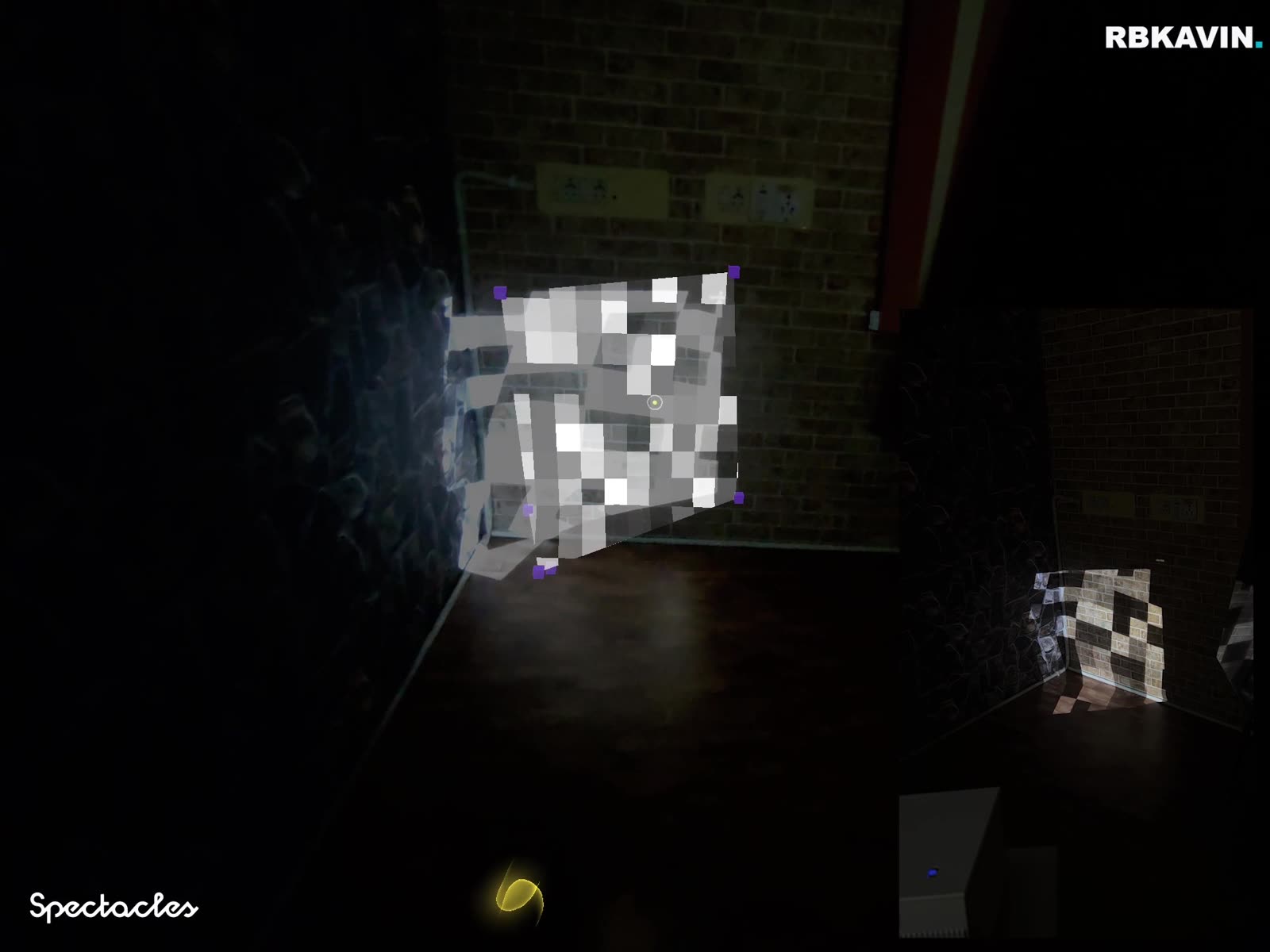
The moment that mattered most during the build was not a feature landing, it was watching a shape sync from the headset to the browser companion and the projector throw it onto a real wall for the first time. Everything up to that point had been a scene in a headset. That first live sync was the proof that the two halves of the system, the AR design tool and the projector output, actually agreed with each other.
We build this kind of live-sync pattern into projection mapping work for brands more broadly, and it is the same underlying discipline behind the spatial AI workbench in Noodle: connect the physical and the digital in one continuous loop instead of designing on one side and hoping it survives the trip to the other.
What's next for Spatial Mapper
V1 is being finished as a standalone entry for the Spectacles Community Challenge, its own submission, not a revision of anything shown earlier. The remaining scope is session save and load, spatial anchors, and the Snap Cloud pairing and onboarding flow, the pieces that make a setup persist and let Web Mode work without a shared network.
Past the contest, the backlog is already clear: content sequences and timelines, multi-projector setups, blend modes, audio-reactive materials, and real 3D model rendering on-device. None of that is a promise with a date attached. It is the next build, once this one ships.
What this means if you are briefing spatial or projection work
Spatial Mapper is a personal build, but the pattern behind it is the same one we bring to client briefs: when a workflow still assumes a flat screen, ask whether the glasses on your face could do that job better. Projection mapping is one answer. Our broader wearables and smart glasses work covers where else that question applies for brands.
If you want to see the studio's live proof-of-work more broadly, the WebAR demos we keep running at ar.rbkavin.studio follow the same principle: build it, ship it live, let people try it rather than watch a video of it.
Frequently asked questions
What is Spatial Mapper?
Spatial Mapper is an AR-native projection mapping tool built for Snap Spectacles. Instead of calibrating a projector's throw on a laptop using a camera and a flat 2D screen, you wear the glasses while a real projector is running and trace where the light actually lands on the wall with your own hands, one point per corner. You then place virtual shapes inside that traced boundary and give each one a material, and the projector throws exactly that design onto the surface.
How is Spatial Mapper different from MadMapper or Resolume?
MadMapper and Resolume are desktop tools: you calibrate a projector's throw by looking at a camera feed on a 2D screen and dragging control points to match. Spatial Mapper moves that same job into AR. You stand in the room wearing Snap Spectacles, physically trace the light boundary with a pinch gesture, and place shapes directly in 3D space rather than on a flat preview. It is built for the same outcome, projected content that fits a real surface, using a spatial-first workflow instead of a screen-first one.
Do I need a real projector to use Spatial Mapper?
No. Spatial Mapper has two modes. Web Mode connects the Spectacles to a browser companion app and drives a real projector's output, and is what you use for an actual show or install. Solo Mode runs entirely on the glasses with no companion app and no projector: you can still trace boundaries, place shapes, and try every material, which is the mode to use for learning the tool or testing a design before you have projector access.
What is the difference between Web Mode and Solo Mode in Spatial Mapper?
Web Mode pairs the Spectacles with a browser companion app over Snap Cloud, so the two do not need to be on the same WiFi network. The companion mirrors the AR scene live, lets you upload your own images, video, GIFs, or 3D models as materials, and actually drives the projector. Solo Mode is Specs-only: every design tool still works, boundary tracing, shape placement, materials, masking, but there is no projector output. Both modes shipped together in V1 rather than staged separately.
Is Spatial Mapper available to try?
The browser companion app is live at rbkavin.studio/tools/spatial-mapper. Using it fully requires pairing with the Spatial Mapper Lens running on Snap Spectacles. The V1 build is being finished as a standalone entry for the Spectacles Community Challenge, with session save and load, spatial anchors, and Snap Cloud-based pairing being the last pieces added before submission.
What is not in Spatial Mapper V1?
V1 deliberately leaves out content sequences and timelines, multi-projector setups, blend modes, audio-reactive materials, and real-time 3D model rendering on the Spectacles themselves, uploaded 3D models currently show as a placeholder on-device and render fully on the web companion instead. These are staged for after the contest build, not missing by accident.
Insights newsletter
Smart glasses, AR campaigns, spatial computing.
Straight to your inbox. No noise.
SubscribeThinking about a projection mapping or wearable AR brief?
Tell us the surface and the moment you're designing for. We'll tell you whether an AR-native workflow gets you there faster than a laptop-and-camera setup.
Start a project